General Property Information
Brand name, taglines, and direct reservation communication channels.
Address & Google Maps
Physical address details and Google Maps integration.
Brand Logo & Visual Identity
Upload a custom hotel logo (PNG with transparent background, SVG, or JPG) or use the signature Vera monogram.
Intro Animation & Splash Logo Settings
Customize the full-screen cinematic entrance animation that plays when visitors first open the website.
Uncheck this if you want visitors to go straight to the homepage without any intro screen.
Real-time preview of your animation logo, initial, colors, and wordmark.
- To use your custom hotel logo: Upload your logo file in Brand Logo & Visual Identity above, then set Animation Logo Style to "Custom Uploaded Brand Logo".
- To change the monogram initial: Set style to "Signature Monogram" and type any letter in Monogram Initial Letter (e.g.
V,H,A). - To customize colors: Click the color pickers for Monogram & Accent Gold Color or Arch Outline Color to match your hotel branding.
- To test in full-screen: Click the orange 🎬 Test Intro Animation button at the top right of this card!
Hero Section Texts & Background
The first impression guests see when landing on the site.
Upload multiple background slides, change slide photos, headlines, and transition order.
Hero Background Slider Images
Add, upload, reorder, and edit rotating background slides displayed on the main homepage banner.
About Us Story & Details
Edit hospitality experience badge, main heading, story paragraph, and property photo.

Why Choose Us Headline & Details
Edit section tag, headline title, description paragraph, and action button.
Guest Satisfaction Rating Badge
The floating badge shown across the collage photos.
Section Collage Images
Manage the two collage photos displayed alongside the checklist.


Feature Highlights & Checklist Items
Add, edit, reorder or delete key selling points and hospital proximity benefits.
Rooms & Suites Inventory
Directly change prices, room titles, or amenities on any card below—all changes automatically sync to the website in real time. Click "📷 Photos" to manage room photo galleries.
Hotel Facilities & Amenities
Manage the 6 facility cards displayed on the homepage.
Hotel Tour Video Player & Source
Set the video that plays when visitors click the pulsating play button on the Virtual Tour section.
You can play and test the video here before guests view it.
Virtual Tour Background Cover Photo
The full-width luxury background photo displayed behind the play button and title.

Virtual Tour Headlines & CTA Button
Edit section tag, title, description, and action button.
Property Photo Gallery
Upload photos, set captions, and assign categories (Rooms, Ambience).
Guest Reviews & Testimonials
Manage verified guest stories and ratings.
Booking Form Side Banner Photo
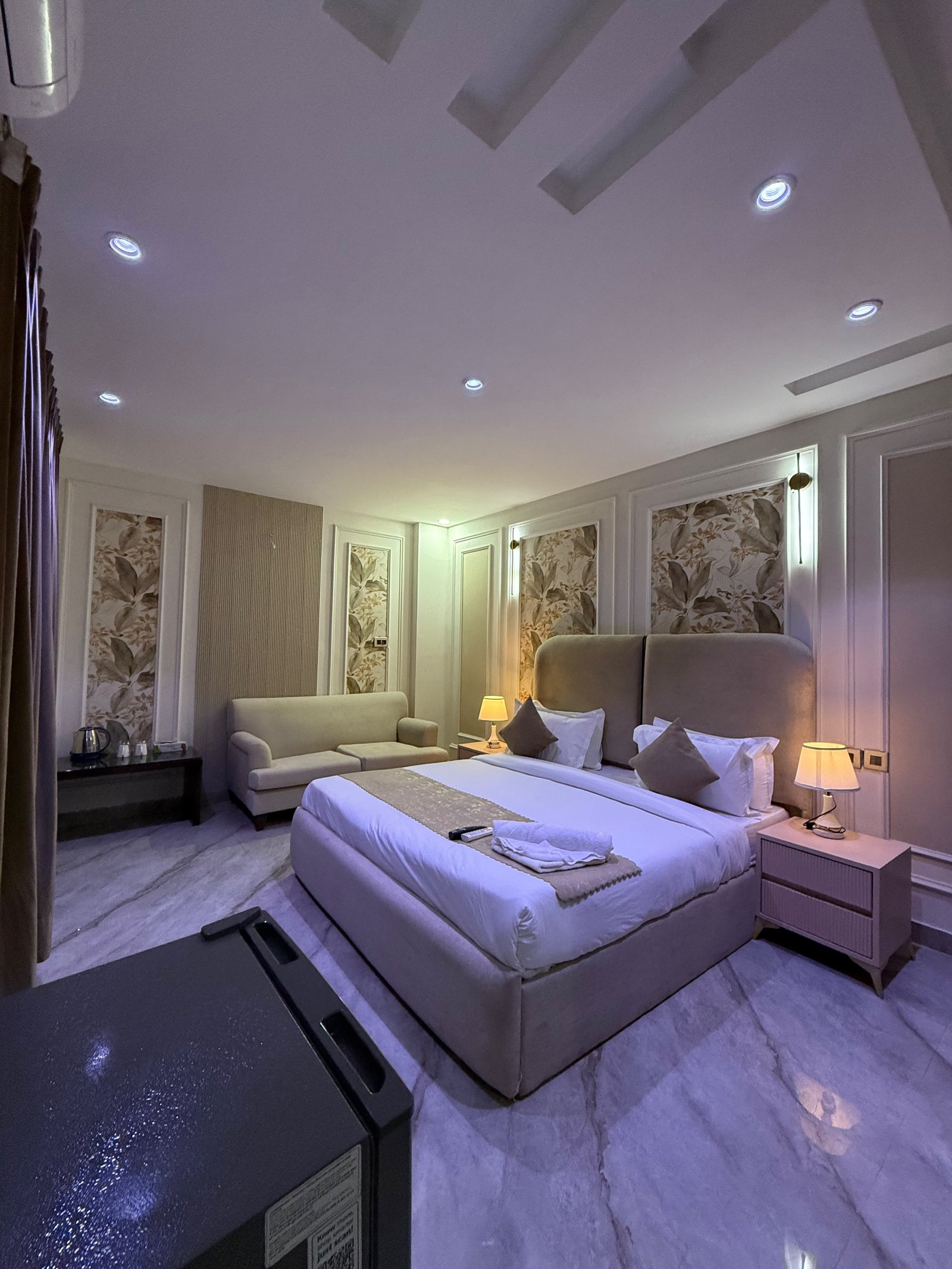
Upload or change the primary luxury room / concierge portrait displayed alongside the reservation form.
Reservation Form Header & Instructions
Edit section title and subtitle guidance for WhatsApp direct booking.
Direct Booking Privileges Overlay Badge
The floating badge shown across the bottom of the photo.
Hospitality Staff & Management
Add or edit team member cards shown on the website.
Frequently Asked Questions
Add or edit questions and answers for guests.
Special Stay Promotion Banner
Customize the promotional holiday banner and live countdown timer.
Blog & Story Management
Write, publish, and edit stories, local guides, and articles for your website visitors.
Admin Access & Password Management
Change your admin portal login password and deactivate or delete default credentials.
Security Recommendations
- The default password is
theVERA@123#. You can change it at any time above. - Make sure to note down your new password in a safe place.
- Passwords are securely saved in your browser local storage.
Export Updated Production File
Download a freshly bundled js/config.js file to deploy anywhere.
When you make changes in this Admin Panel, they are saved instantly to your browser's local memory. To permanently update the website source files for deployment on your web hosting or GitHub, click below to download the updated config.js and place it inside your the vera/js/ folder.